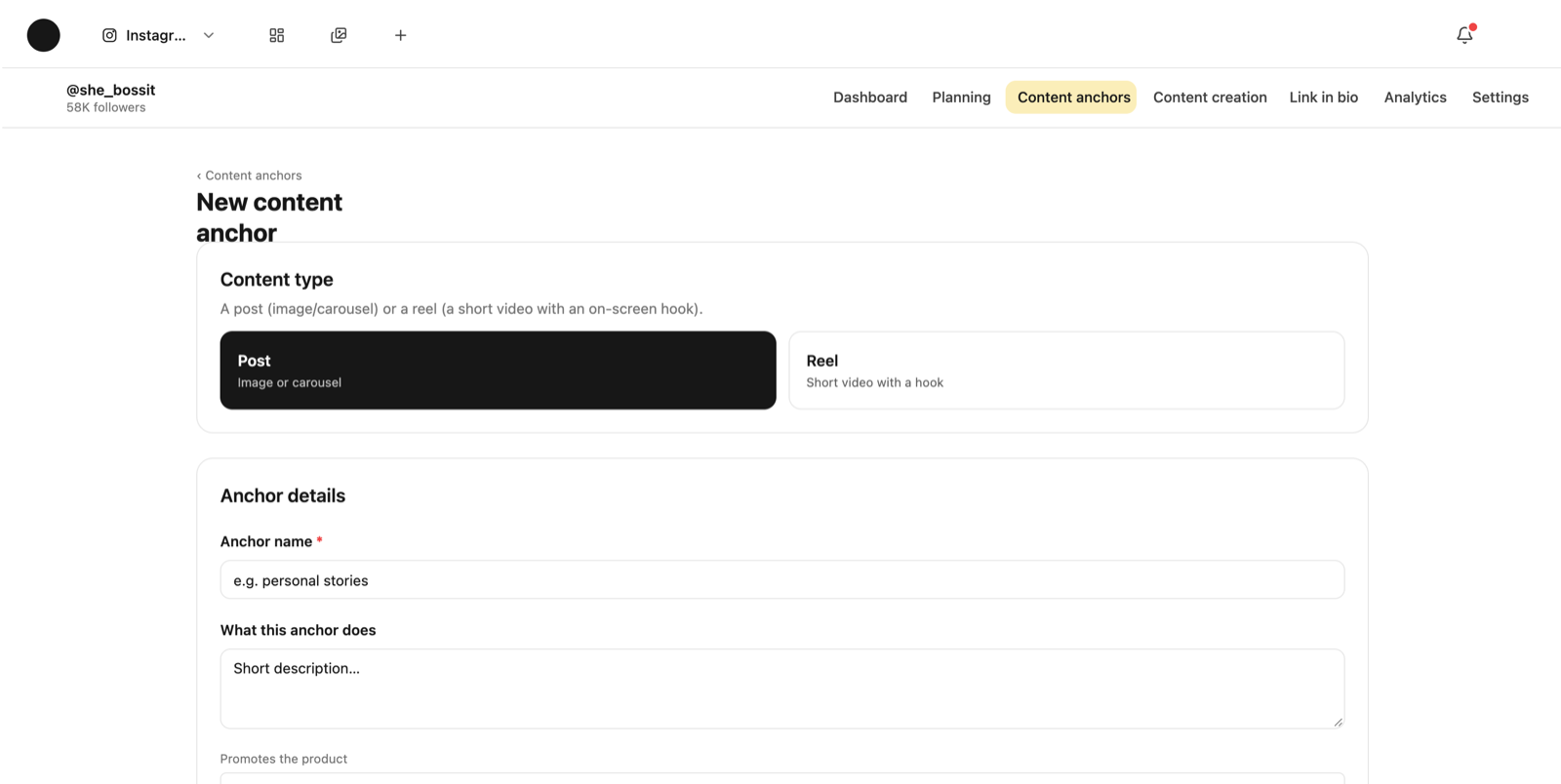
Content creation in Coflow doesn't start with “write me a post”. It starts with an anchor — a recurring subject you come back to — and with references that show what that kind of content looks like for you. From those two, the system knows both what to write and how it should look.
What is a content anchor?
An anchor is a recurring subject of yours: “personal stories”, “mistakes I see clients make”, “behind the scenes”. It isn't a single post, it's a category you can keep writing out of.
Each anchor has its own references — real posts that show how this content looks and sounds — and its own design template. That's why two different anchors produce content that looks and reads differently, which is the whole point.
Without at least one anchor, the content-creation screen is empty. There's nothing to generate from.
How do I choose references, and why do they decide the result?
The references are the spec. The system doesn't guess what a “good post” is — it reads the posts you gave it and learns the structure, line length, hook type and tone from them. That's why two anchors with different references produce content that looks and reads differently.
1Pick posts that represent the category, not posts that happened to get a lot of likes. Likes measure reach; what you're teaching here is structure.
2Take two or three that are structurally similar. Too much spread averages the output — six completely different posts give you a post that resembles none of them.
3Yours or other people's, both are read the same way: as a spec, not as something to copy — the text is written from your brand.
4Paste the links into the references field when you set the anchor up. You can swap them at any time, and it's the first thing to change when the structure of the output isn't right.Content anchors →
5A post you liked that doesn't belong to a particular anchor — save it to the references board, so it's there when you set the next anchor up.References board →
The template decides how every post generated from that anchor looks — slide layout, where the text sits, colours and fonts.
The simple route: “Reference → template → posts”. Paste a link to a post you liked, the system learns a template from it, and you can swap its colours and font to match your Brand Kit.
An anchor with no template has nowhere to render a post. If content creation says “no template yet”, that's what's missing.
Content creation → pick an anchor at the top → the system writes a post from it. The output arrives with slides, a caption and images from your gallery.
From the post screen you can edit any slide, swap an image, ask for a rewrite of a specific part, copy the caption and download the slides as images (or a reel as a video file).
Publishing itself is yours to do on Instagram. Coflow prepares, schedules and keeps.
First — just fix it directly. Editing a line isn't working around the system; it's how it learns your voice.
If the tone is consistently wrong: add writing samples in Brand Voice. If the structure is wrong: the anchor's references are the problem — swap them. If the design is wrong: the template is the problem.
Only if all of those are fine and it's still far off is the anchor itself too broad. An anchor called “business” gives you an averaged output; “pricing mistakes freelancers make” gives you a sharp one.
Does “anchor” mean the same thing on every platform?
No — and the confusion is fair: one name, different objects.
On Instagram and YouTube an anchor is a recurring subject with references and a template: it teaches the system what this content looks and sounds like for you, and posts or videos are generated from it.
In the newsletter an anchor is a recurring issue: its sections, what goes in each, and in what tone. It has no references and no carousel template — it's the structure of a letter.
For the podcast there's no anchor to set up: a transcribed episode is the raw material, and the episodes anchor on Instagram appears by itself to promote it.
That's why each platform explains its own steps in its own area rather than in one general place.
Two or three to start, five or six once things are running. Enough that the page doesn't feel monotonous, not so many that no anchor is sharp.
If a podcast is connected you also get an automatic anchor for promoting episodes. That one you don't have to set up by hand.
What are “formats”?
A format is a structure that's proven itself in your niche — a “vehicle” you pour a message into: a list of mistakes, a before/after, a breakdown of one case.
The system looks for formats on your own page, in your niche and in adjacent ones. What you approve enters content creation as an available structure; what you don't, doesn't.
What's the difference between the planning board and the calendar?
The planning board is by state: each content item moves through stages — idea, in progress, ready — so you can see what's being worked on.
The calendar is by date, and it crosses platforms: podcast episodes and content items from every channel in the same month, so you can see whether a week is packed or empty.
A date on the board is a plan, not a publication. An item whose date has passed shows as “planned”, not “published” — the system doesn't check what actually went out.
Yes, two ways. You can save it to the references board as inspiration, or paste it into the template studio — and then the system learns a template from it and builds your own posts on it.
What gets learned is the structure and the design, not the text. The content is written from your brand and your anchor.